

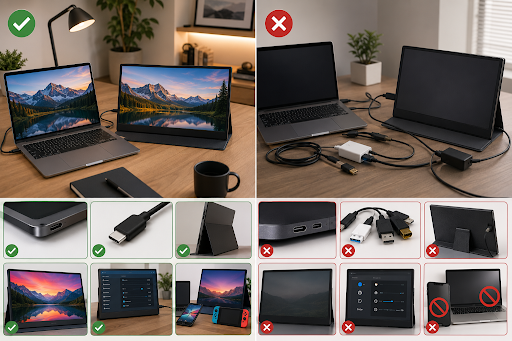
USB-C has made it a lot easier to connect laptops, tablets, smartphones, and monitors to each other. A small reversible port may support video, data, and power simultaneously, which would make a simple one-cable solution ideal for portable displays. In practice, not all USB-C ports are created equal.
Confusion often begins here. A USB-C cable might fit snugly between your laptop and monitor but will still not transmit video. Some computers and tablets are capable of one-cable display connections while others need HDMI, a second power cable, or both.
Let’s review how USB-C portable monitors work, which gadgets are and aren’t compatible, and what you should check before plugging in your second screen.
How a USB-C Portable Monitor Works
A USB-C portable monitor receives a video signal through a USB-C cable from the source device it is connected to. In the ideal scenario, that one cable is capable of sending both the display signal and enough power to run the monitor itself.
In order for that to be possible, the USB-C port on the source device has to support video output, usually through DisplayPort Alternate Mode (DP Alt Mode), Thunderbolt, or some other display tech.
The most common way to set this up looks something like this:
Laptop or compatible device → USB-C cable → Portable monitor
If the source device can’t provide sufficient power, the monitor may also need to be plugged into a separate USB-C power adapter.
USB-C Does Not Always Support Video Output
One of the most common misconceptions about USB-C is that any and all USB-C ports output video. While USB-C describes the physical connector, not the features passed over it.
A USB-C port may support any of the following:
- Charging only
- Data transfer only
- Data and charging
- DisplayPort Alt Mode
- Thunderbolt
- USB4 with display support
It’s important to check your laptop, tablet, smartphone, or gaming device specifications before buying a portable monitor. Look for terms such as DP Alt Mode, DisplayPort over USB-C, Thunderbolt 3/4/5, or a supported USB4 video output.
USB-C Connection Compatibility Table
| Connection Type | Video Output | Power Delivery | One-Cable Monitor Setup |
| USB-C with DP Alt Mode | Yes | Usually | Often |
| Thunderbolt 3/4/5 | Yes | Yes | Usually |
| Compatible USB4 Port | Yes | Usually | Often |
| Data-Only USB-C | No | Limited | No |
| Charging-Only USB-C | No | Yes | No |
| HDMI + USB Power | Yes, via HDMI | Separate power | No |
Keep in mind this table is a simplification. The actual compatibility will depend on the source device, as well as the portable monitor.
What Works with USB-C Portable Monitors?
1. USB-C with DisplayPort Alt Mode
USB-C with DisplayPort Alt Mode is one of the most common methods for connecting to a portable display. If both the computer and monitor support compatible USB-C video transmission, a full-featured USB-C cable could carry video and power at the same time.
2. Thunderbolt Connections
Thunderbolt is a high-bandwidth display and data-transfer technology that generally supports native video output.
USB-C portable displays can connect to many Thunderbolt-equipped laptops, although available resolution and refresh rate still depends on the specific hardware.
3. HDMI Plus USB Power
No native USB-C video output? HDMI may still be an option.
Many portable monitors come with a Mini HDMI or full-size HDMI port.
In this setup, the HDMI cable would be used to carry the video signal while a USB connection or power adapter would provide power to the monitor.
4. Compatible Smartphones and Tablets
USB-C with DisplayPort Alt Mode support is also available on some smartphones and tablets.
In this case, users should confirm their particular model and operating system support wired video output through USB-C.
USB-C Monitors from UPERFECT are portable display solutions designed to help power through a wide range of workflows and applications. Monitor options cover productivity, gaming, creative work, and mobile setups.
What Doesn’t Work with USB-C Portable Monitors?
A USB-C Charging Port Without Video Output
A USB-C port on a computer that only supports charging cannot send a display signal. Connecting a monitor directly to this port will not show an image.
A USB-C Data Port Without DP Alt Mode
Some computers have USB-C ports that are only capable of transferring files and connecting accessories. However, those ports do not support native video output.
In this case, it may be necessary to use a different connection method or port.
A Charge-Only USB-C Cable
USB-C cables also matter. A USB-C cable that was designed to support charging only may not be capable of carrying a video signal.
Even if both connected devices support display output, a properly configured full-featured USB-C cable would still be needed.
Insufficient Power
Some computers, smartphones, and tablets may not have enough power to operate a larger or brighter external display.
In this case, the screen may flicker, disconnect, or not turn on at all. Connecting the monitor to an external power source may be able to solve this problem.
Resolution, refresh rate, and other display performance considerations are important as well.
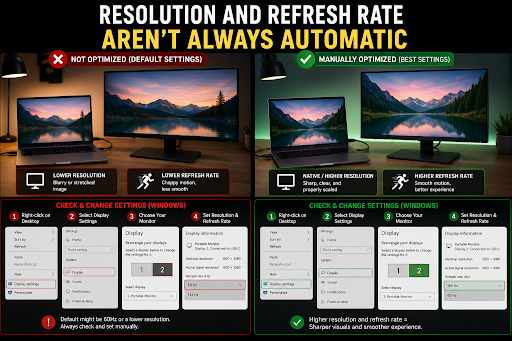
Resolution and Refresh Rate Aren’t Always Automatic
A successful USB-C connection does not always equal the best display performance. Resolution and refresh rate may also depend on the connected devices, port, cable, and monitor itself.
| Use Case | Common Display Priority |
| Office work | 1080p or higher resolution |
| Gaming | Higher refresh rate and low latency |
| Video editing | Resolution and color accuracy |
| Outdoor work | High brightness and visibility |
| Travel | Low power consumption and portability |
For outdoor workflows, a high-brightness sunlight monitor may also provide better visibility than a standard low-brightness display. However, increased brightness usually requires more power, making an external power source more important as well.
Checking USB-C Compatibility
Before buying a USB-C portable monitor, users should check these four things:
- Source device: Does the laptop, tablet, or smartphone USB-C port support video output?
- Monitor input: Does the portable monitor support USB-C video input?
- Cable: Do you have a full-featured USB-C cable or is a different cable or adapter needed to carry video?
- Power: Can the source device provide enough power, or is external power required?
Checking these four specifications should be enough to prevent most problems when connecting portable monitors.
USB-C Portable Monitor Troubleshooting
If a USB-C portable monitor displays a “No Signal” message, users should try another full-featured USB-C cable and make sure the correct USB-C port is being used.
Some laptops and computers have multiple USB-C ports with different capabilities. If the display flickers or disconnects repeatedly, an external power source should be connected to the monitor.
For issues with resolution or refresh-rate, users should check the display settings and make sure the cable and source device actually support the desired output mode.
FAQs
Do all USB-C ports support portable monitors?
No. The port needs to support video output with a compatible technology such as DisplayPort Alt Mode, Thunderbolt, or supported USB4 display features.
Can one USB-C cable power a portable monitor and send video?
Yes, in many compatible setups. However, larger, brighter, or more powerful monitors may require additional power.
Why does my USB-C portable monitor say “No Signal”?
Common causes for this problem include a USB-C port without video output, an incompatible cable, the wrong input source, or not enough power.
Can I use HDMI if my laptop’s USB-C port does not support video?
Yes, if both the laptop and portable monitor have compatible HDMI connections. The monitor may also need a separate USB power connection.
Does any USB-C cable work with a portable monitor?
No. Some cables only support charging. Users need a cable that supports the required display and data standards for USB-C video.
Conclusion
USB-C can make portable monitor setups remarkably simple, but the connector itself does not always guarantee compatibility.
Successful connection requires support on the source device, USB-C port, cable, monitor, and available power. When buying or connecting a portable display, checking for video-output support beforehand will ensure the smoothest experience.
If no native USB-C video output is available, HDMI plus separate USB power may often provide a practical alternative.
Understanding the limits of USB-C makes it much easier to build a reliable portable display setup without extra adapters, cables, or troubleshooting.
 Oscar James S